
New SWOOP is a modern analytics application hosted on Azure that uses Microsoft identity to control access and connects to your organisation through a customer-approved app registration. This article is for customers preparing to use new SWOOP for the first time and explains what to expect, what needs to be configured, and how the current SWOOP experience differs from older product versions.
At a glance: To start using SWOOP, your organisation approves a Microsoft Entra app registration, grants the required permissions, and securely shares the connection details with SWOOP so your existing data for your classic SWOOP instance can be connected to the new user experience application.
New SWOOP Application
New SWOOP consists of a React-based web application connected through APIs and Azure Front Door to a Node middleware layer. Access to resources is controlled through Microsoft Identity using least-privilege principles, so service-to-service access is authorised without relying on individual user credentials behind the scenes.
For the new SWOOP, customer data used by the new interface is stored per customer in geo-locked Azure resource groups. Each customer environment has its own private data services, including Cosmos DB and Key Vault resources. Existing SWOOP Classic processed analytics data remains accessible through APIs scoped to the customer’s resource group, and the legacy mining process remains in place. There are no changes to how SWOOP mines SharePoint or Viva Engage as data sources.
Before setup
Prior to setup ensure you have:
- An administrator with sufficient rights in Microsoft Entra ID, typically a Global Administrator or Application Administrator
- Approval to create and consent to an enterprise application for SWOOP access
- A secure way to share configuration values with SWOOP after setup
If your organisation wants to fully control the application registration in its own tenant, the single-tenant setup approach is the right model (Option 2).
Option 1: Standard SWOOP Multi-tenant app setup
Our support team will configure your current SWOOP instance to be ready for using the New SWOOP interface. You can will then need an M365 Global Admin to approve the new SWOOP UI App Registration which allows your nominated users to login to the new SWOOP app.
The consent process is a dynamic progressive permission model meaning you only consent to the permissions which are required for the SWOOP Products you have enrolled in.
To approve the App Registration and allow the enterprise app to be added to your tenant, the Global Admin Should visit :
https://app.swoopanalytics.com/connect
From here you will be required to enter your domain or tenant ID
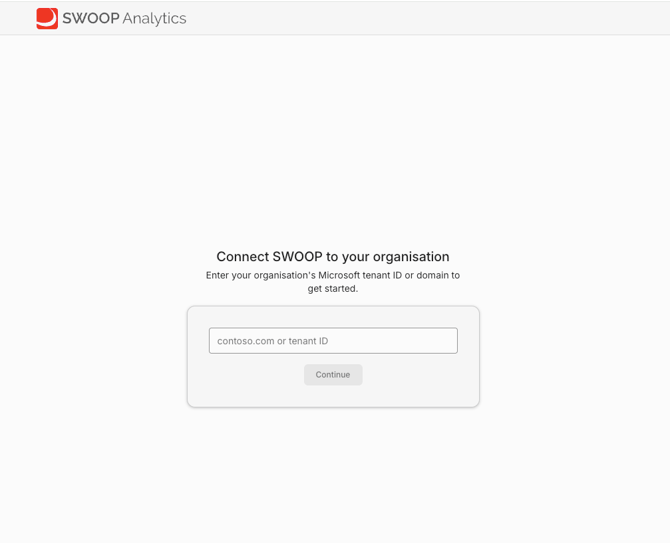
Once confirmed you will be required to approve the base set of permissions which all SWOOP products require to work:
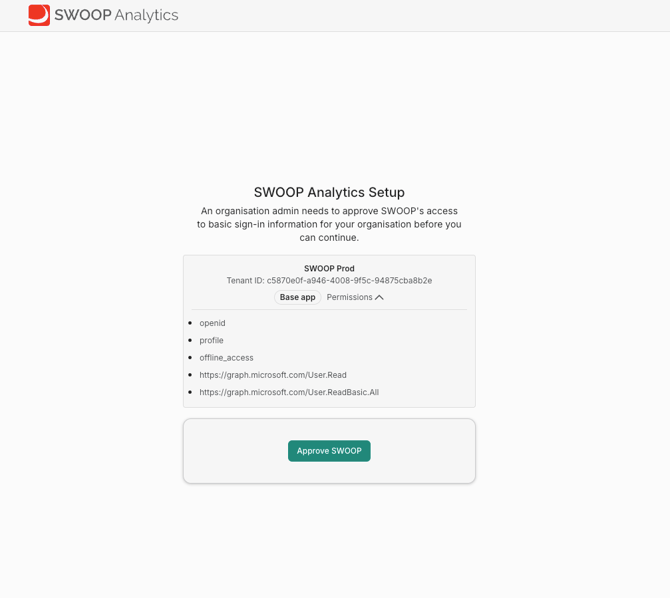
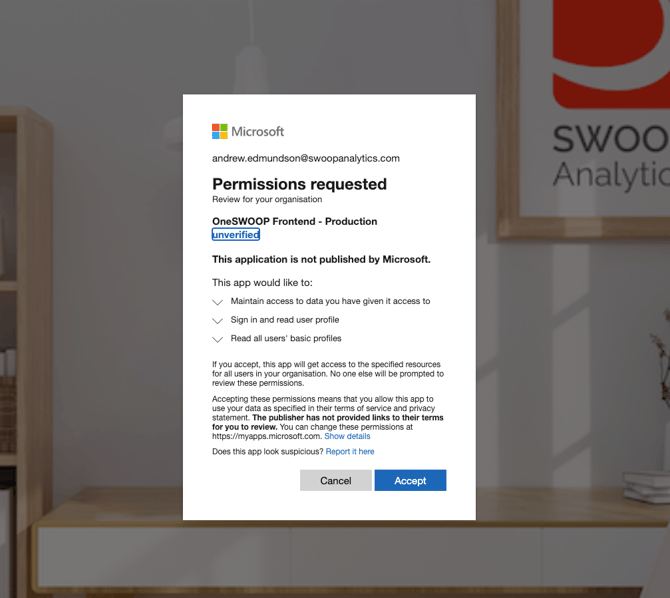
Ensure to select all organisation so your users can access SWOOP without needing to be individually approved later.
Once approved you will have access to the Data Source management which lists the products you have access to and provides you with the Approval buttons to consent to each :
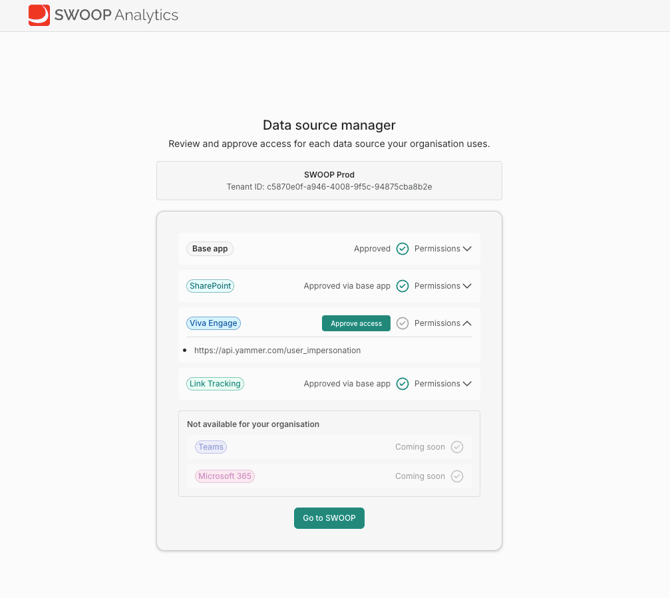
Typically for a SharePoint only set-up the base app is all that is required to be approved, if you have the Viva Engage SWOOP product this requires an additional approval. Please approve the Link Tracking data source so you can preview this too.
Once approved your nominated Private Preview user/s will be able to log in to the new SWOOP.
Next : read Access and Security in new SWOOP
Option 2: Customer Managed Single-tenant setup
If you do not want to use the standard SWOOP Multi-tenant app, you can create your own through the customer-managed single-tenant setup. This is designed to let your organisation control the Microsoft Entra application that SWOOP uses for sign-in and access.
- Create a new app registration in Microsoft Entra ID.
- Configure the required redirect URIs for the SWOOP login flow.
- Add the required Microsoft Graph and Viva Engage permissions.
- Grant admin consent for the tenant.
- Expose an API and create the required scope.
- Create a client secret.
- Send the Tenant ID, Application ID, and client secret value securely to SWOOP.
Required setup details
App registration
In Microsoft Entra ID, create a new app registration using a name such as OneSWOOP and set the supported account type to Accounts in this organizational directory only (Single tenant).
Use the following redirect URI for the initial registration:
- https://app.swoopanalytics.com/auth/redirect as a Single-page application (SPA) redirect URI
Then add the second SPA redirect URI:
- https://app.swoopanalytics.com/auth/login
Permissions
The single-tenant setup page specifies the following delegated permissions required for all products unless otherwise noted:
- Microsoft Graph: openid
- Microsoft Graph: profile
- Microsoft Graph: offline_access
- Microsoft Graph: User.Read
- Microsoft Graph: User.ReadBasic.All
- Yammer / Viva Engage: user_impersonation (For SWOOP Viva Engage Only)
After adding these, an administrator must grant admin consent for the organisation so the permissions show as approved.
Expose an API
Your app registration should expose an API using the default Application ID URI format, then add a scope named access. This enables the app to access SWOOP middleware APIs on behalf of the signed-in user.
Client secret
Create a client secret and copy the Value immediately. This value is only shown once.
Do not send secrets by ordinary email. Share the Tenant ID, Application ID, and client secret value with SWOOP using a secure channel such as the SWOOP Secure Vault.
Information to send to SWOOP
|
Item |
Where to find it |
|---|---|
|
Tenant ID |
App registration Overview page → Directory (tenant) ID |
|
Application (client) ID |
App registration Overview page → Application (client) ID |
|
Client secret value |
The secret value copied when the client secret was created |
Use the secure vault referenced by your SWOOP contact to provide these details: https://securevault.swoopanalytics.com/
Once you have provided these details and we have confirmed they have been enabled, The Global Admin will need to visit https://app.swoopanalytics.com/connect
Enter your tenantId and continue.
You will need to click Approve on each of the data sources which you have access to for your SWOOP Private Preview. If Link tracking is listed and available please Approve this to include this in your Private Preview. - The approval process here is simply to 'enable' the data sources for your users - all other consent grants will have already been done earlier when you created the App Reg.
Access and security in the new SWOOP experience
The current SWOOP architecture is designed around service identities and customer isolation.
- Hosted on Azure: SWOOP runs as a modern Azure-hosted web application.
- Least-privilege access: Resource access is based on Microsoft Identity and authorised web services.
- Per-customer isolation: Data for the new interface is stored per customer in geo-locked resource groups.
- Private services per customer: Each customer environment has its own private Cosmos DB and Key Vault resources.
- Scoped access to existing analytics: SWOOP Classic processed analytics data is accessed through APIs scoped to the customer resource group.
- Existing mining remains in place: The legacy mining process is not replaced as part of this new interface rollout.
What this means for customers: The new SWOOP model separates the user experience layer from older back-end processing while strengthening tenant isolation and aligning access with modern Microsoft identity patterns.
What is different from older SWOOP product versions
The older SharePoint and Viva Engage technical overview documents describe product architectures that are more mining-centric and product-specific. The current SWOOP setup and architecture introduce a simpler access model for the new user interface and a more standardised Azure service design.
Key differences from older SharePoint and Viva Engage versions
|
Area |
Current SWOOP |
Classic SharePoint / Viva Engage versions |
|---|---|---|
|
User experience architecture |
React web app through Azure Front Door to Node middleware |
Classic product-specific web application and analytics engine patterns |
|
Data model |
Per-customer geo-locked resource groups with private data services for link and configuration data. Customer analytic data remains as the original SWOOP |
Classic SWOOP architectures as outlined in the standard technical documentation |
|
Identity model |
Microsoft Identity with least-privilege service access |
Classic flows rely more explicitly on miner authentication plus browser-side enrichment calls |
|
Setup approach |
Managed Entra app registration for SWOOP sign-in and middleware access - one app for multiple data sources |
Managed Entra app for Classic SWOOP - with an app per data source. |
|
Processing architecture |
Existing mining remains in place while the new UI accesses data through scoped APIs |
Classic SWOOP architectures as outlined in the standard technical documentation |